WebRTC Video Client :link:
Streams video from a browser (webcam) to a Holoscan pipeline over WebRTC, with optional recording and replay.
Table of contents
- Prerequisites
- 1. Generate certificates (for connecting from a different machine)
- 2. Configure the application
- 3. Launch the dev container
- 4. Run on a
PUBLICnetwork - 5. Run on a
LOCALnetwork webrtc_readyscript usage reference- Graph structure
- Troubleshooting
Prerequisites
- Repository cloned at
$HOME/repositories/oocular/ready - Dataset directory, including models available at
$HOME/datasets/ready. See mobious/models- You need to bind the required models and install the required dependencies and utils
- Docker installed, with the Holoscan dev container image available
opensslinstalled (for certificate generation)bash sudo apt-get install net-tools
1. Generate certificates (for connecting from a different machine)
If you'll connect to the client from a device other than the host (e.g. your phone), generate a self-signed TLS certificate:
bash
cd $HOME/datasets/ready
mkdir -p webrtc && cd webrtc
openssl req -new -newkey rsa:4096 -x509 -sha256 -days 365 -nodes \
  -out MyCertificate.crt -keyout MyKey.key
You'll be prompted for certificate details (Distinguished Name fields). It's safe to press Enter to accept the defaults for all of them:
``` .....+...++++++
You are about to be asked to enter information that will be incorporated into your certificate request. What you are about to enter is what is called a Distinguished Name or a DN. There are quite a few fields but you can leave some blank For some fields there will be a default value, If you enter '.', the field will be left blank.
Country Name (2 letter code) [AU]: State or Province Name (full name) [Some-State]: Locality Name (eg, city) []: Organization Name (eg, company) [Internet Widgits Pty Ltd]: Organizational Unit Name (eg, section) []: Common Name (e.g. server FQDN or YOUR name) []: Email Address []: ```
2. Configure the application
-
Create
recordingspath otherwise you will get: 'recorder_op' - Failed to open index_file_stream_ with error: GXF_FAILUREbash mkdir -p ~/datasets/ready/webrtc/recordings -
Set up Model bindings as shown in model-dev
-
Set the model and recording paths/filenames in the config file:
bash
cd $HOME/repositories/oocular/ready/
vim configs/apis/config_webrtc_ready.yaml
3. Launch the dev container
bash
cd $HOME/repositories/oocular/ready/docs/holoscan
bash launch_dev_container.bash
4. Run on a PUBLIC network
4.1 Launch the WebRTC client
```bash
Recording disabled
bash /workspace/volumes/ready/scripts/apis/webrtc_ready.bash PUBLIC DEBUG webrtc False
Recording enabled
bash /workspace/volumes/ready/scripts/apis/webrtc_ready.bash PUBLIC DEBUG webrtc True ```
4.2 Find your host IP
Run ifconfig on the host. The address on the inet line (000.000.0.000 below) is your {YOUR_HOST_IP}:
bash
$ ifconfig
wlp0s20f3: flags=4163<UP,BROADCAST,RUNNING,MULTICAST>  mtu 1500
        inet 000.000.0.000  netmask 255.255.255.0  broadcast 0.0.0.0
4.3 Connect a browser to stream video from the mobile phone to the Holoscan server (device with GPU).
On your mobile phone (or any other device on the same network):
- If using Chrome, go to
chrome://flags, search forunsafely-treat-insecure-origin-as-secure, enter the origin you want to treat as secure — e.g.https://{YOUR_HOST_IP}:8080— enable the flag, and relaunch the browser. See the upstream README for details. - Navigate to
https://{YOUR_HOST_IP}:8080/.
The following figure shows screenshots of the Brave browser connected to the client at https://{YOUR_HOST_IP}:8080/. You will need to click through the browser's "not private" warning, since the certificate is self-signed, the browser cannot verify it against a trusted authority and flags the connection as unsafe. You will also need to grant the site camera permission, since the browser uses it to capture and stream video.

The figure below shows the terminal output with debug logs from webrtc_client.py, alongside the viewer window displaying the streamed video with segmentation overlay.

4.4 Stop the pipeline
- Press Ctrl+D in the terminal running the client.
- In the browser UI, click Stop, then Exit API.
4.5 Replay recordings
```bash
Raw replay
bash /workspace/volumes/ready/scripts/apis/webrtc_ready.bash PUBLIC DEBUG replayer_raw False
Inference replay
bash /workspace/volumes/ready/scripts/apis/webrtc_ready.bash PUBLIC DEBUG replayer_inference False ```
5. Run on a LOCAL network
5.1 Launch the WebRTC client
```bash
Recording disabled
bash /workspace/volumes/ready/scripts/apis/webrtc_ready.bash LOCAL DEBUG webrtc False
Recording enabled
bash /workspace/volumes/ready/scripts/apis/webrtc_ready.bash LOCAL DEBUG webrtc True ```
5.2 Open the client in a browser
bash
firefox http://127.0.0.1:8080/
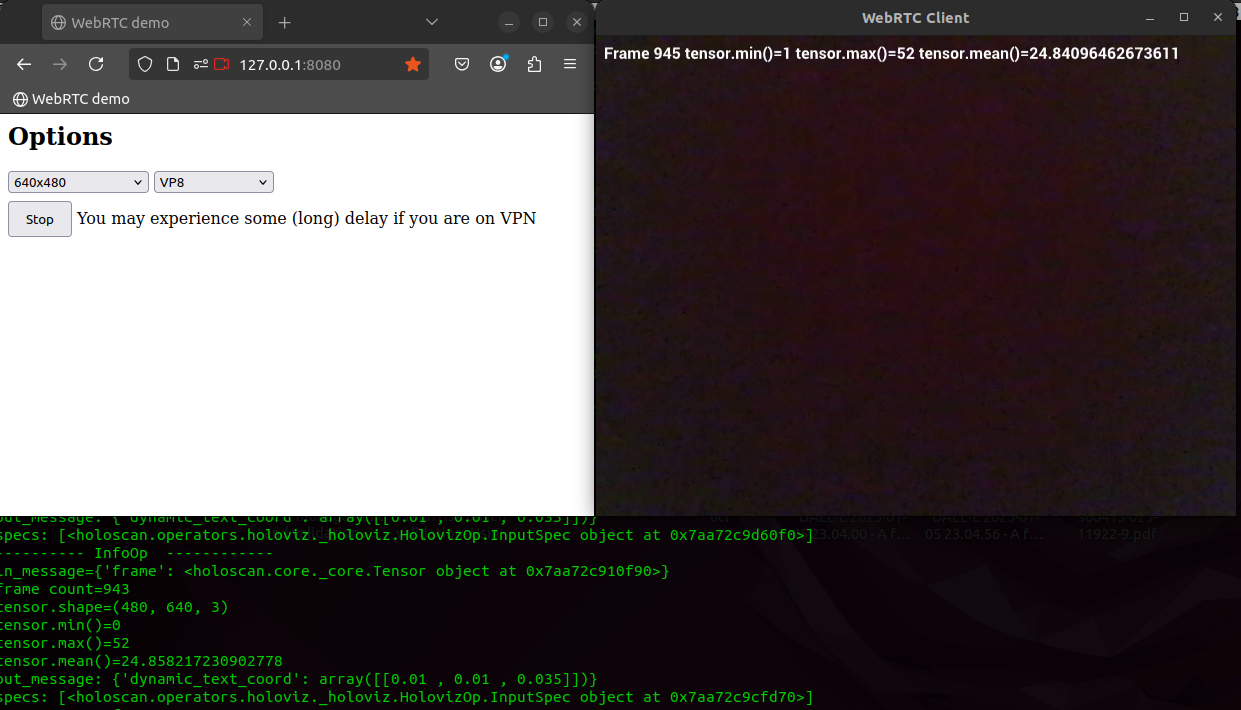
Available settings in the UI:
- Video resolution: 320x240, 640x480, 960x540, 1280x720, 1920x1080
- Video codec: VP8, H264
5.3 Stop the pipeline
- Click Stop to stop streaming.
- Click Exit API.
5.4 Replay recordings
```bash
Raw replay
bash /workspace/volumes/ready/scripts/apis/webrtc_ready.bash LOCAL DEBUG replayer_raw False
Inference replay
bash /workspace/volumes/ready/scripts/apis/webrtc_ready.bash LOCAL DEBUG replayer_inference False ```
webrtc_ready.bash script usage reference
bash
bash webrtc_ready.bash <$1:NET> <$2:HOLOSCAN_LOG_LEVEL> <$3:SOURCE> <$4:ENABLE_RECORDING>
| Arg | Name | Allowed values |
|---|---|---|
| $1 | NET |
LOCAL, PUBLIC |
| $2 | HOLOSCAN_LOG_LEVEL |
OFF, DEBUG, TRACE, INFO, ERROR |
| $3 | SOURCE |
webrtc, replayer_raw, replayer_inference |
| $4 | ENABLE_RECORDING |
True, False |
Graph structure for webrtc_client.py
mermaid
flowchart LR
    subgraph Server
        WebRTCClientOp --> DropFramesOp
        DropFramesOp --> HolovizOp
        DropFramesOp --> PreInfoOp
        PreInfoOp --> FormatOp
        FormatOp --> InferenceOp
        InferenceOp --> SegmentationOp
        SegmentationOp --> HolovizOp
        InferenceOp --> PostInfoOp
        PostInfoOp --> HolovizOp_outputs --> HolovizOp
        PostInfoOp --> HolovizOp_output_specs --> HolovizOp
        WebServer
    end
    subgraph Client
        Webcam --> Browser
        Browser <--> WebRTCClientOp
        Browser <--> WebServer
    end
See also: flow_benchmarking
Troubleshooting
Kill a stuck client process:
bash
kill $(ps aux | grep "python webrtc_client.py" | awk '{print $2}')
Edit scripts locally:
bash
cd $HOME/repositories/oocular/ready/
vim scripts/apis/webrtc_ready.bash
vim src/ready/apis/holoscan/webrtc_ready/webrtc_client.py
Stop the dev container:
```bash
Stops the first container in docker ps.
If you have more than one container running, list IDs with docker ps
(or docker ps -aq for all containers, including stopped ones) and
target the correct one explicitly: docker stop
docker stop $(docker ps -q | head -n 1) ```